
Why Testing WordPress Matters More Than You Think
Testing WordPress is essential for ensuring your website can handle real-world traffic without crashing, slowing down, or losing customers. Here’s what you need to know:
Quick Answer: How to Test WordPress
- Create a safe testing environment (staging site or backup)
- Choose a stress testing tool (like Loader.io, K6, or BlazeMeter)
- Run simulated traffic tests starting with 2-3x your normal peak traffic
- Analyze results for response times, errors, and bottlenecks
- Optimize performance based on identified issues (hosting, caching, plugins)
- Test regularly before launches and after major changes
WordPress powers over 43% of all websites, but many site owners don’t realize their site might be one traffic spike away from disaster. A sudden surge in visitors can cause your site to crash or slow down, leading to lost sales, frustrated customers, and a damaged reputation. These scenarios happen daily to unprepared websites.
Testing WordPress isn’t just for developers. If you run a business, an online store, or publish content, you need to know how your site performs under pressure. It’s like a fire drill for your website—you prepare before an emergency strikes.
The good news is that testing is more straightforward than it sounds. You don’t need a computer science degree or expensive tools. With the right approach, you can identify your site’s breaking point, fix vulnerabilities before they hurt your business, and build confidence in your online presence. This guide will walk you through everything you need to know about stress testing WordPress, from preparation to optimization.
Why Stress Testing Your WordPress Site is Crucial
When a blog post goes viral or a flash sale takes off, the resulting traffic spike can slow your site to a crawl or crash it completely. That moment of triumph quickly becomes a crisis. This is why testing WordPress under pressure is so critical.
A stress test simulates what happens when hundreds or thousands of visitors hit your site simultaneously. It differs from a speed test, which measures load time for a single user in ideal conditions. Stress testing is a workout for your website, pushing it to find weaknesses before a real emergency.
Traffic spikes aren’t always predictable. While you might plan for a marketing campaign, a piece of content could go viral unexpectedly, generating a massive surge in visitors. The consequences of a site that can’t handle this load are severe: lost revenue, frustrated customers, and a damaged brand reputation.
Stress testing is about more than disaster prevention; it’s about building confidence. Knowing your site can handle high traffic allows you to pursue ambitious marketing goals without fear. A reliable site delivers a consistent experience, which builds customer trust and can indirectly benefit SEO through improved user experience.
Testing WordPress provides a roadmap for improvement. It helps you find slow plugins, unoptimized images, and whether your hosting plan is sufficient. You identify bottlenecks before they affect customers, allowing you to fix issues proactively.
Here are the key reasons every WordPress site owner should stress test regularly:
- Prevent site crashes and downtime during your most important moments
- Protect your revenue by ensuring customers can always complete transactions
- Maintain your brand reputation with consistent, reliable performance
- Prepare for major events like launches, sales, or viral content
- Understand your hosting limits and upgrade before you need to
- Identify performance bottlenecks in plugins, themes, or database queries
- Build confidence in your ability to handle growth and success
- Improve user experience during peak traffic periods
The bottom line? Stress testing is proactive protection for your online presence. It’s how you ensure that when your big moment arrives, your website is ready to deliver.
A Practical Guide to testing wordpress for High Traffic
This practical guide provides a step-by-step roadmap for testing WordPress the right way.
Before You Begin: Preparing for testing wordpress
Proper preparation is essential. Running a stress test on your live website is risky, as it can slow down or crash your site for actual customers. It’s better to find your site’s breaking point in a controlled environment.
Never test on your live site. This is the golden rule of testing WordPress. Always use a staging environment—a complete clone of your website where you can experiment safely. Many hosting providers offer one-click staging. If yours doesn’t, you can create one with a plugin like Backup Migration.
Notify your hosting provider before you test, especially on a shared plan. A sudden traffic spike from a test can look like an attack, potentially leading to a temporary account suspension. A quick email to your host can prevent this.
Even on a staging site, create a full backup first as a safety net. For quick, isolated tests on a specific plugin or theme, a sandbox environment like WordPress Playground is a useful tool that runs a temporary WordPress instance in your browser.
Choosing and Setting Up Your Stress Testing Tool
While there are many tools for testing WordPress, we recommend Loader.io for its user-friendly interface and generous free tier, which is sufficient for most small to medium-sized sites.
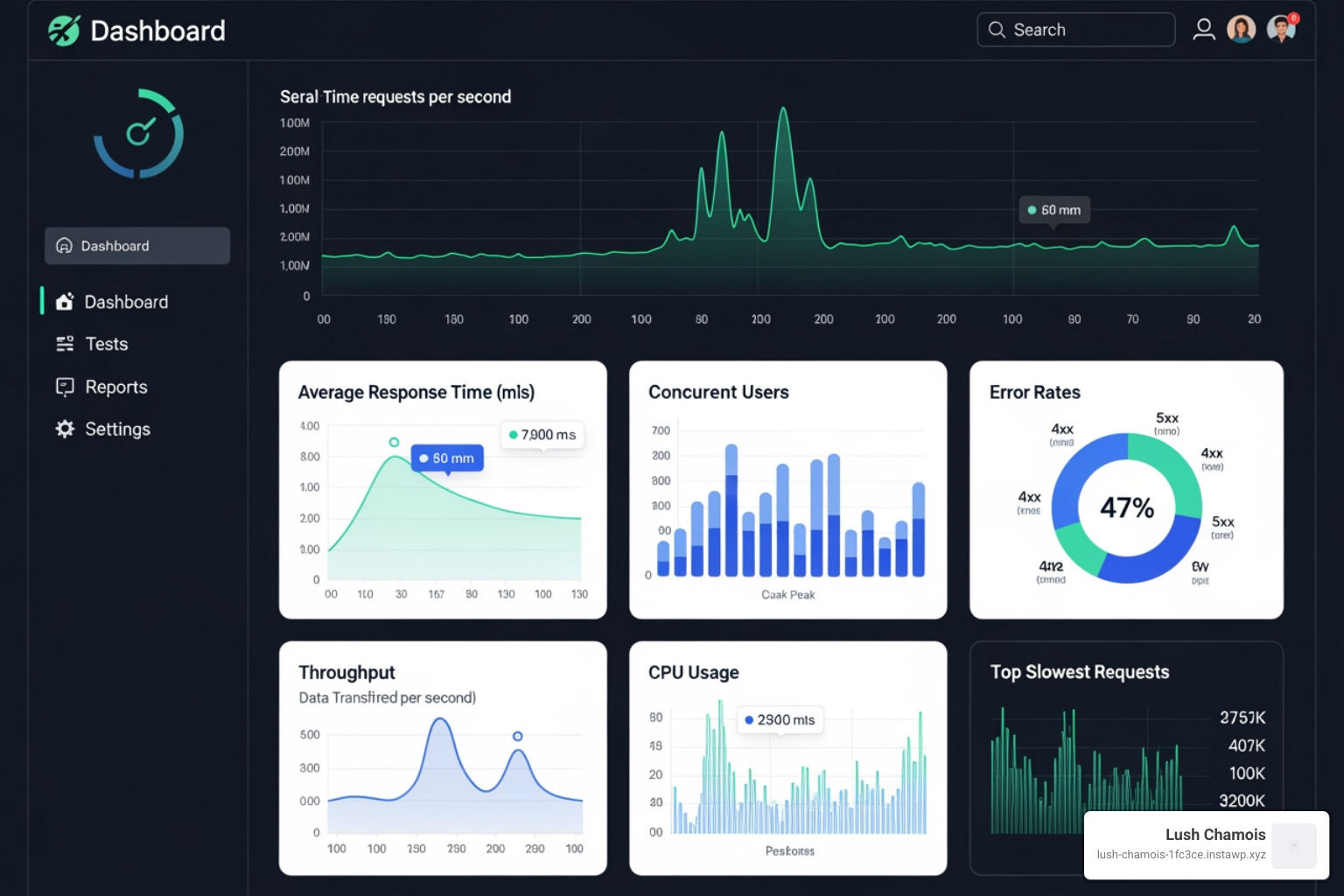
Loader.io is a cloud-based service that simulates thousands of concurrent visitors to see how your server and WordPress installation hold up under pressure. To get started, go to the Loader.io website and sign up for a free account.
Once logged in, you must add your website as a host and verify ownership. This is a security measure to prevent unauthorized testing. You can verify by uploading a file to your site’s root directory via FTP or your host’s file manager, or by adding a TXT record to your domain’s DNS settings. Once verified, you are ready to begin testing WordPress.
Configuring and Running Your Test
This is where you’ll find what your website can handle.
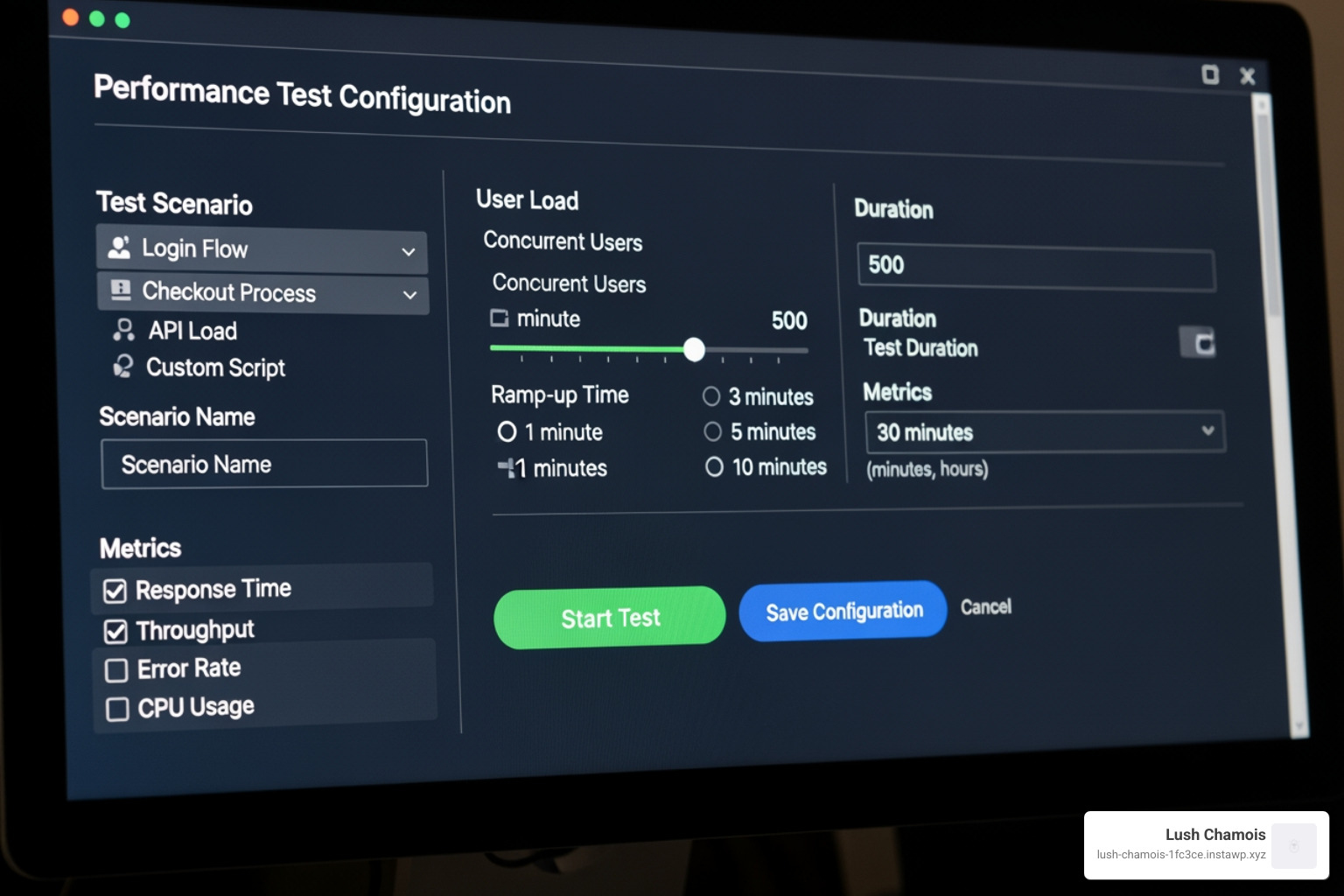
In your Loader.io dashboard, create a new test and configure the options.
First, choose a test type. For your initial testing WordPress effort, we recommend Clients per test. This sends a specific number of users over a set duration (e.g., 250 clients over one minute), giving you a clear snapshot of how your site handles a sudden surge. Other options include Clients per second (ramps up traffic) and Maintain client load (keeps a constant number of users).
Set a duration of one to two minutes for initial tests. This is long enough to gather meaningful data without unnecessarily straining your server.
Next, determine how many simulated users to test with. Check your website analytics (e.g., Google Analytics) to find your peak traffic. How many concurrent visitors do you have during your busiest hour?
Start with a conservative load and increase it gradually. For your first test, multiply your peak concurrent visitor number by two or three. If your peak is 50 visitors, start with 100-150 clients. This provides a realistic baseline. In subsequent tests, gradually increase the load (e.g., 200, 300, 500 clients) until you see performance degrade or errors appear. This process reveals your site’s true limits.
Choose your target URLs carefully. Test the pages most critical to your business, such as your homepage, popular product pages, key blog posts, and transaction pages like contact forms or the checkout flow. Loader.io allows testing multiple URLs to simulate realistic user behavior.
Once configured, click “Run Test.” Loader.io will send simulated traffic to your staging site, providing real-time data on its performance under stress.
Interpreting Test Results and Optimizing Performance
The data from your stress test tells a story about your website’s performance. Learning to read it is the key to optimization.
Analyzing Your testing wordpress Results
After a test, Loader.io provides a dashboard of results. Focus on these key metrics:

- Average response time: The average time it takes your server to respond. Under 1,000ms (1 second) is a good target.
- Maximum response time: The longest response time experienced by a single user. A high number (e.g., over 10 seconds) indicates a severe bottleneck and a poor user experience.
- Error rate: The percentage of failed requests. This should ideally be 0%. Any errors mean users are hitting dead ends.
- Timeouts: Requests that the server failed to answer in time. High numbers mean your server is overwhelmed.
- Requests per second (RPS): Your site’s throughput or stamina. If this number drops as the test progresses, your server is struggling.
- Bandwidth: The amount of data transferred. This helps you check against your hosting plan’s limits.
Look for the point where response times spike and errors appear. This is your site’s breaking point—the number of concurrent users where performance degrades significantly.
From Insights to Action: Fixing Performance Bottlenecks
A poor stress test result is an opportunity. It shows you what to fix before real customers are affected. Common bottlenecks include:
- Slow database queries: Under stress, WordPress database queries can become a traffic jam.
- Unoptimized plugins: Some plugins make excessive database calls or run heavy processes on every page load, causing slowdowns under high traffic.
- Hosting limitations: Your hosting plan has finite CPU, RAM, and bandwidth. If your site crashes at a user level below your goal, your hosting may be inadequate.
- Caching issues: Without caching, your server rebuilds every page for every visitor, which is highly inefficient.
Start by checking the built-in Site Health tool in your WordPress dashboard (Tools > Site Health). It often flags easy-to-fix issues like outdated PHP versions.
Best Practices for a High-Performance WordPress Site
Based on your test results, implement these solutions to build a site that can handle success:
- Use Managed WordPress Hosting: These plans are optimized for WordPress performance. If your current hosting is the bottleneck, upgrading is the most effective fix.
- Install a Caching Plugin: Caching is non-negotiable. Plugins like WP Rocket or W3 Total Cache create static versions of your pages, drastically reducing server load.
- Use a Content Delivery Network (CDN): A CDN delivers assets like images and scripts from servers closer to your visitors, speeding up load times and reducing the strain on your main server.
- Optimize Images: Compress images, use modern formats like WebP, and enable lazy loading. Images are often the largest part of a page.
- Update Your PHP Version: Newer versions of PHP (like 8.x) are significantly faster. This is often a simple change in your hosting control panel.
- Remove Unused Plugins and Themes: Deactivated plugins and themes can still consume resources and pose security risks. Delete what you don’t need.
- Use Debugging for Advanced Issues: For deeper technical problems, enabling WordPress debugging can reveal underlying errors.
If you’re still facing issues, consider hiring a professional WordPress support service. The goal is resilience—a site that can comfortably handle 3-5 times your expected peak traffic, giving you a buffer for unexpected success.
Frequently Asked Questions about WordPress Performance Testing
Here are answers to common questions about testing WordPress performance.
How often should I stress test my WordPress site?
Regular stress testing is proactive maintenance. Key times to test include:
- Before a product launch or major event: Ensure your site can handle the expected traffic from a sale or marketing campaign.
- After major site updates: Verify that changes to your theme, plugins, or hosting haven’t negatively impacted performance.
- Seasonally for e-commerce: Test well before predictable traffic spikes like Black Friday or other holidays.
- Annually as a best practice: Run a yearly checkup to catch performance degradation over time.
What’s the difference between a stress test and a speed test?
It’s an important distinction.
A speed test (using tools like Google PageSpeed Insights) measures how quickly your site loads for a single visitor in ideal conditions. It tells you if your site is fast for one person.
A stress test, on the other hand, simulates hundreds of concurrent users to find your site’s breaking point. When testing WordPress this way, you’re not measuring speed, but resilience. You’re finding how many users your site can handle before it slows down or crashes.
Both tests are valuable. A speed test tells you if your site is fast; a stress test tells you if it can handle success.
Can I run a stress test on a shared hosting plan?
Yes, but you must be extremely careful. Shared hosting means you share server resources with other websites. A stress test can consume excessive resources, slowing down other sites and potentially triggering an automatic suspension of your account by your host, who may mistake the test for an attack.
Always inform your hosting provider before running a stress test on a shared plan. Check their terms of service, as some prohibit load testing. They may have specific guidelines or require an upgrade.
If you are serious about preparing for high traffic, consider upgrading your hosting. Managed WordPress hosting, VPS, or cloud plans provide dedicated resources designed for performance and are better suited for both testing and handling real traffic spikes. Investing in better hosting ensures your site is ready when success arrives.
Conclusion
Your WordPress website is the digital heartbeat of your business. Testing WordPress proactively ensures that when a traffic surge hits, you can celebrate success instead of managing a crisis. By following this guide, you’ve learned how to set up a safe testing environment, run tests, and use the results to build a resilient site that won’t let you down. Proactive performance management is the key to a reliable user experience and is achievable for any site owner.
Think of stress testing as your website’s regular health checkup. Just as you wouldn’t skip important medical tests to catch problems early, your website deserves the same preventive care. Speaking of stress-free testing experiences, that’s exactly what we do at Lush Chamois—we provide convenient, reliable COVID-19 PCR and virtual rapid antigen testing with gold-standard accuracy and official documentation, all backed by Canadian healthcare professionals.
Building a resilient website takes effort, but the steps we’ve covered provide a solid foundation. Start small, test often, and optimize continuously. Your future self (and your visitors) will thank you.
For more information about our healthcare testing services and how we make medical testing as stress-free as your website should be, please visit our services page.